Log Sentinel
Read your store’s logs before your buyers find the problem.
Log Sentinel collects the logs from your online store, PIM and ERP into one place, counts errors and warnings hour by hour, and watches for the messages you care about, such as a payment timeout or a failed shipping lookup, so your team hears about them in Teams.
Name the messages that matter, and hear about them.
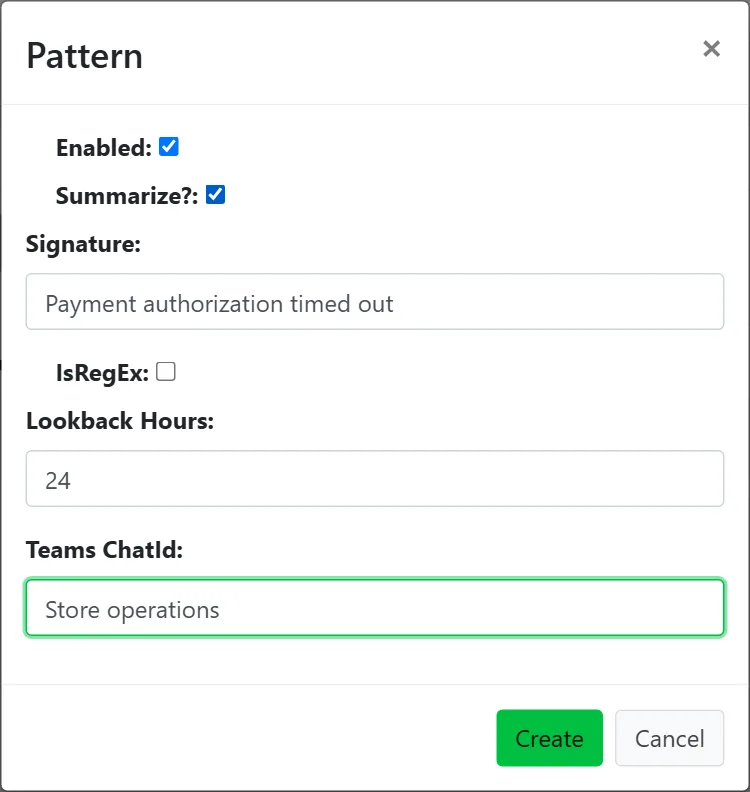
A watch pattern is a phrase, or a regular expression, that Log Sentinel looks for in your logs.
Payment authorization timed out
look back: 24 hours
summarize: yes
Teams chat: Store operations
- Oct 29, 13:31 UTC
- Payment authorization timed out for order W261029005; retried and captured
- Level
- Error
- Detail
- PaymentGatewayException: the operation timed out after 30000 ms
Sent to the Store operations chat in Teams, with the full log entry a click away.
The warning was in the log all along.
In a B2B commerce stack, one misconfigured integration or unnoticed error can disrupt orders, confuse inventory or break a customer-facing workflow.
-
Logs in too many places
The store, the PIM and the ERP each keep their own logs, on their own servers and consoles.
-
Nobody reads them
Thousands of routine lines a day bury the one that says payments are timing out.
-
Customers notice first
A missing image or a failed shipping lookup is found when a buyer calls, not when it happens.
Collect, count, watch, tell.
-
Collect
Connect your online store, PIM and ERP, and their logs arrive in one place, each with its own view.
-
Count
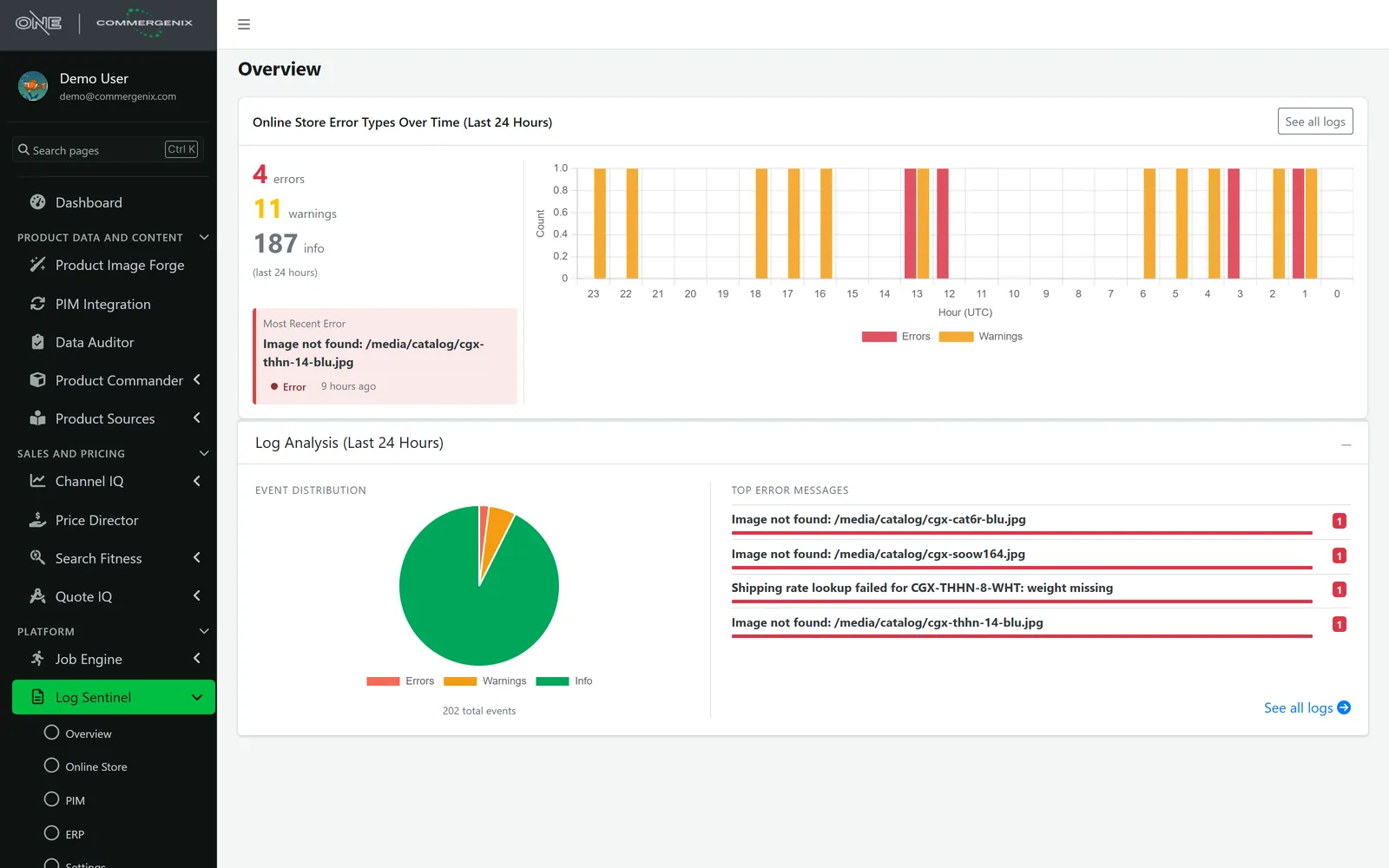
Errors, warnings and info events for the last 24 hours, hour by hour, with the most common error messages.
-
Watch
Set the phrases or regular expressions that matter to you, each with how far back to look.
-
Tell
When a pattern matches, the right Teams chat hears about it, with a summary if you want one.
Every line, searchable, from every system.
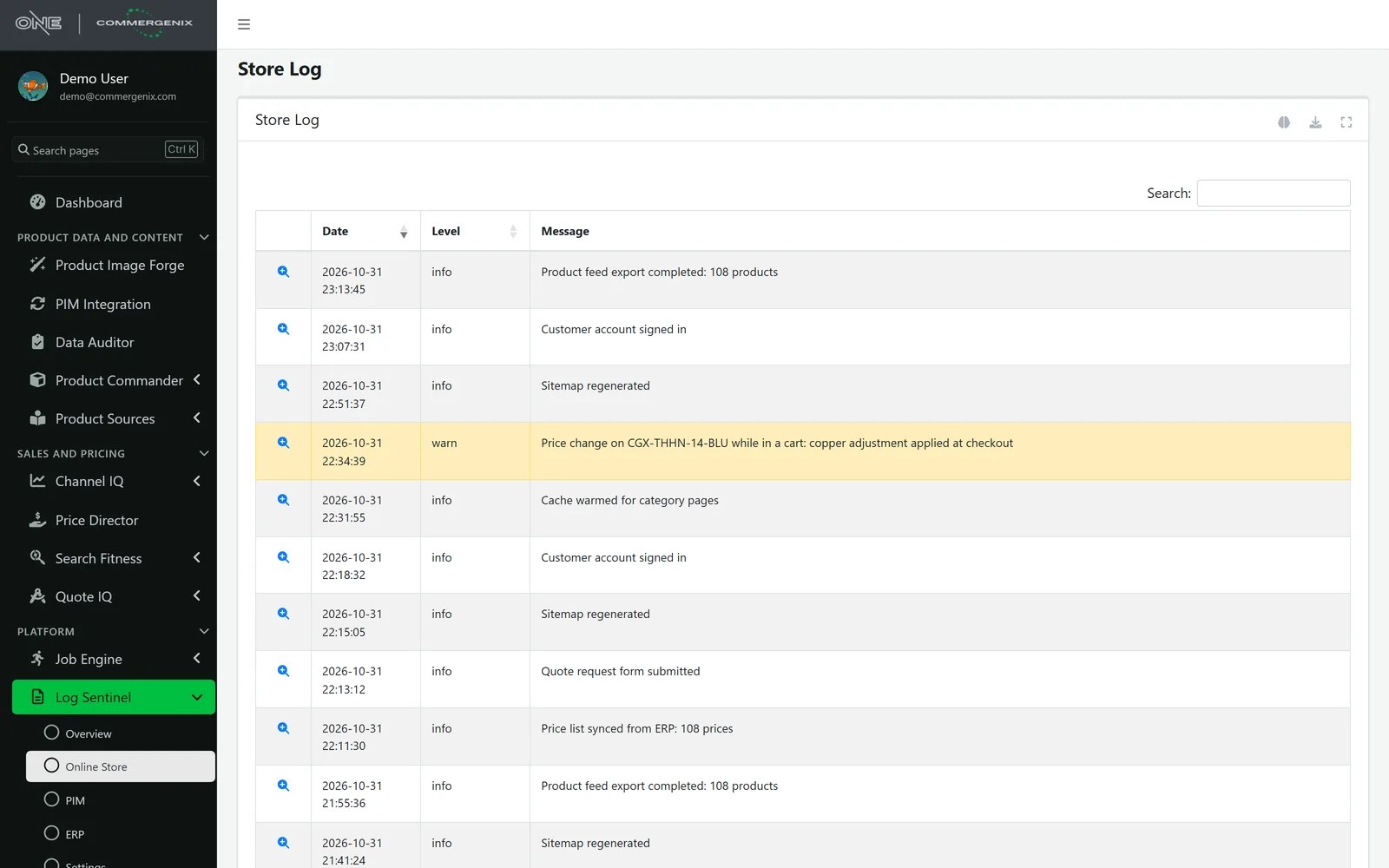
Each source, such as the online store, PIM or ERP, has its own log: date, level and message, newest first, with warnings and errors highlighted. Search it, download it, or open any entry to see the full record.
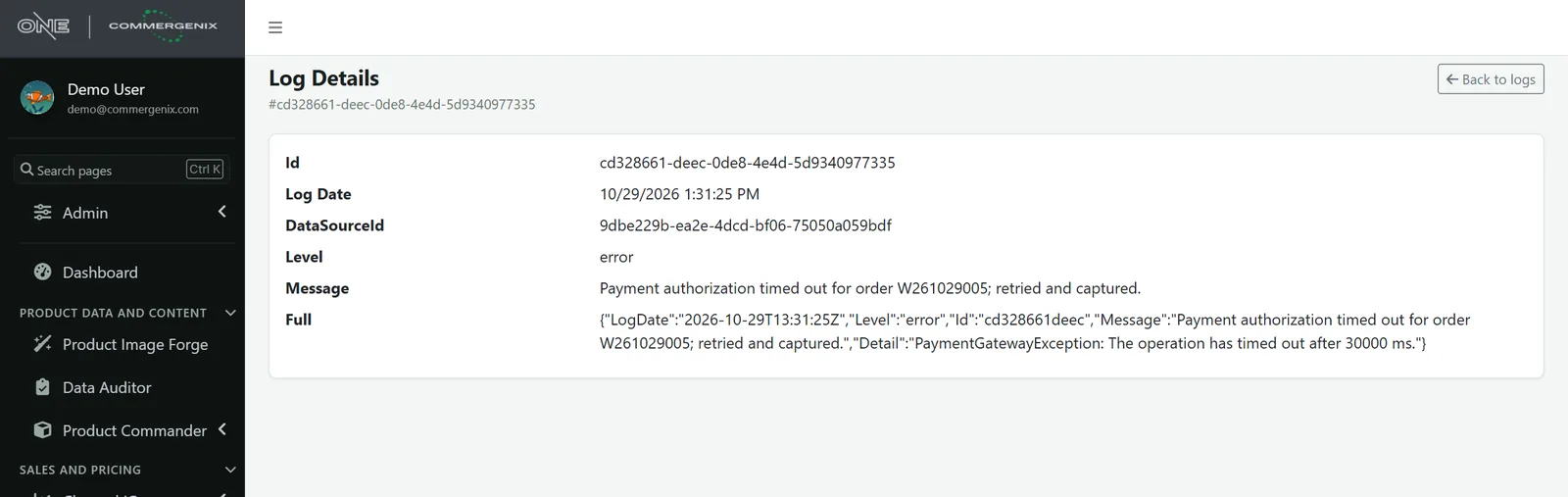
- The full entry: the complete record as the system logged it, including details such as the exception.
You decide what’s worth an alert.
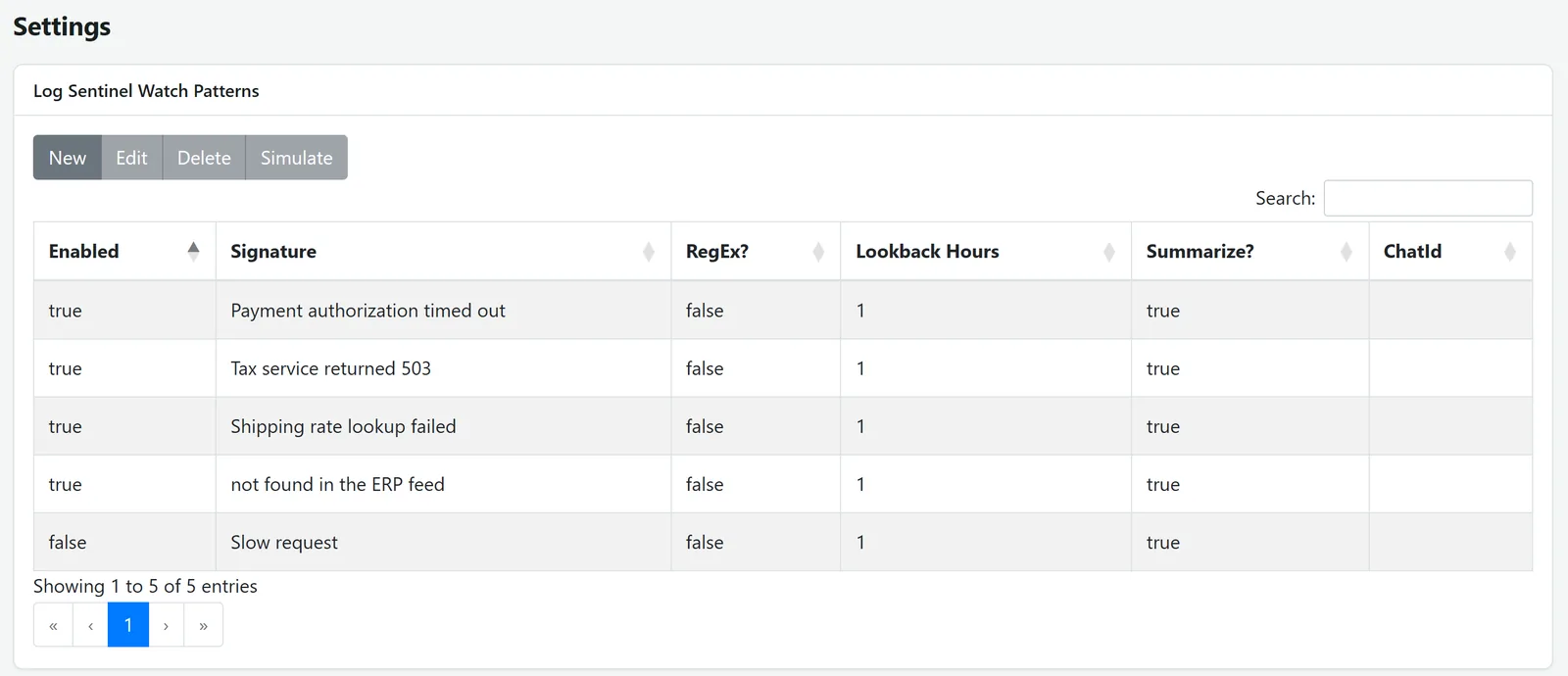
Add a pattern for each message your team should hear about: a payment timeout, a tax service error, a failed shipping lookup, or a product missing from the ERP feed. Turn patterns on and off as you need them.
- Plain text or regular expressions, each with its own lookback window.
- Summaries on request, and a Teams chat for each pattern.
- Simulate a pattern from the settings page.
Alerts about real problems, with the evidence attached.
Only what you ask for
Alerts come from the patterns you set, so routine lines stay in the log and out of your chat.
The original entry
Every message links back to the full log record, exactly as the system wrote it.
Counts you can check
Errors, warnings and info are counted over a stated period, with the hours they happened in.
Your logs only
Each company sees its own sources, logs and patterns.
For teams who keep a commerce stack running.
Ecommerce operations
Hear about payment, tax and shipping errors as they happen, not when a buyer calls.
Integration owners
See the store, PIM and ERP logs side by side when a sync goes wrong.
Developers and support
Search the logs and open the full entry without signing in to each server.
Common questions
Which systems can it collect logs from?
Your online store, PIM and ERP each get their own log. If you run other systems whose logs you want to see, tell us what they are.
How do alerts work?
You set watch patterns, plain phrases or regular expressions, each with a lookback window. When one matches, it posts to the Teams chat you chose, with a summary if you ask for one.
Will I get an alert for every error?
No. Only the patterns you set send alerts, and you can turn each one on or off. Everything else stays in the log and the overview.
Can I see the full log entry?
Yes. Open any line to see the complete record, including details such as the exception the system logged.
Works alongside
Every Commergenix module shares one sign-in, one job engine, and one set of integrations, so each one you add makes the others more useful.
Service Monitor
Checks your websites and APIs on a schedule, and listens for heartbeats from the jobs and integrations that should run on time.
Learn more →Job Engine
Schedules and monitors background work such as syncs, imports, and data refreshes, with run history and alerts.
Learn more →Search Fitness
Regular test reports on how well your storefront search performs.
Learn more →Name the errors your team should never miss.
Tell us which systems you run and the problems you’ve heard about too late. We’ll show you how Log Sentinel would watch for them.