Job Engine
Every scheduled and on-demand job, in one place.
Job Engine runs the background work your commerce operation depends on: syncs between ERP, PIM and storefront, pricing updates, data refreshes and reports, on a schedule or on demand. Every run is recorded with how it went, how long it took and what it did.
Background work is easy to lose track of.
The syncs, imports and reports that keep a commerce operation running tend to grow one script and one scheduled task at a time.
-
Scattered across servers
Each integration runs somewhere different, on its own schedule, and only the person who wrote it knows where.
-
“Did it run?”
Without a record of each run, nobody can say whether last night’s import finished, failed or never started.
-
Manual steps, manual errors
Exports, re-keying and one-off mappings repeated every week, each one a chance to get the data wrong.
Define it once, then let it run.
-
Define the job
A coded job for developers, or a no/low-code workflow for the rest of the team, with its settings in one place.
-
Schedule it
At a time of day, a few minutes past every hour, or manually, on demand.
-
Every run recorded
The outcome, when it started and finished, how long it took, and a summary of what it did.
-
Watch and act
See successes, warnings and failures at a glance, run any job now, and report each run to Service Monitor.
What ran, what’s running, and what’s next.
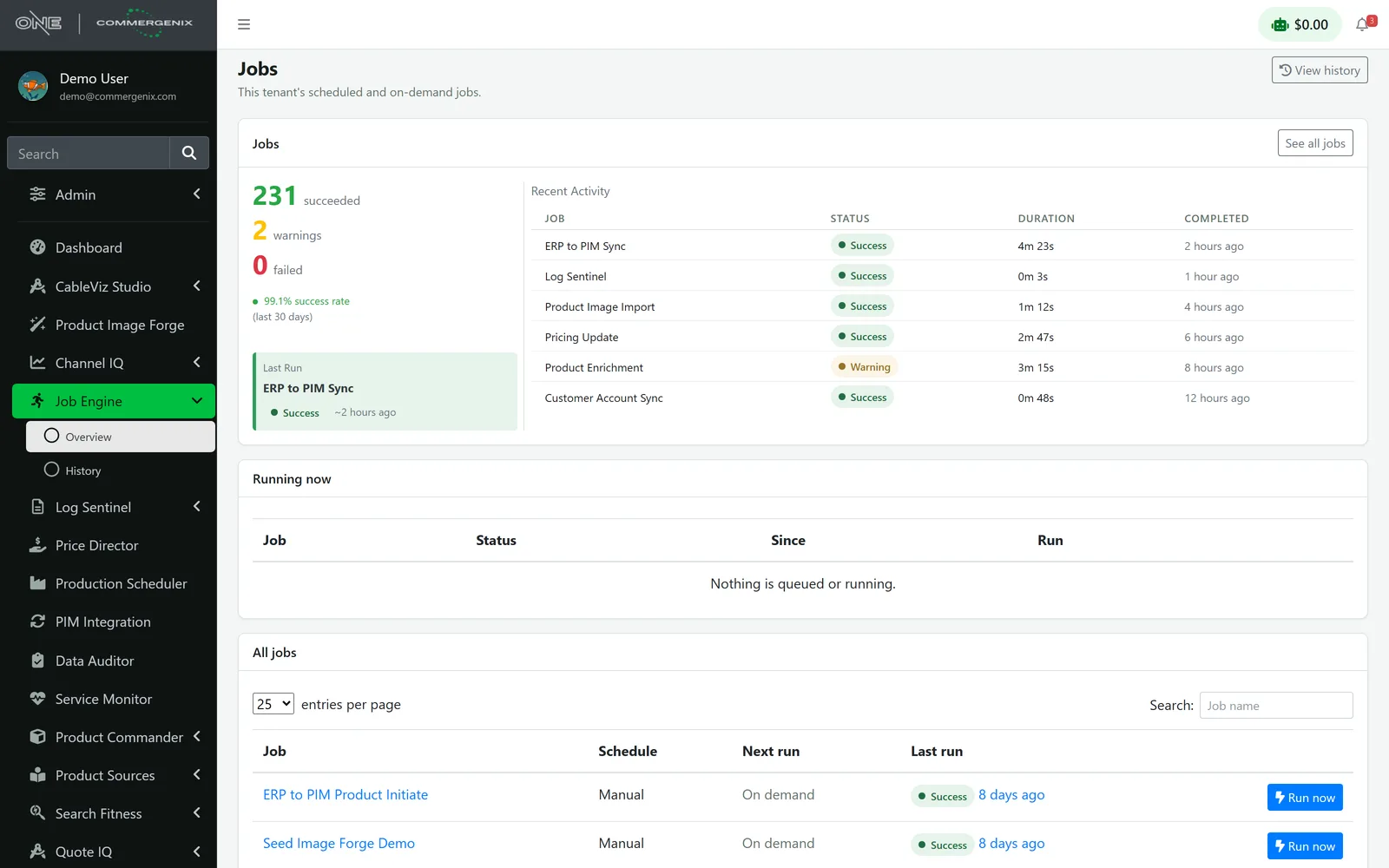
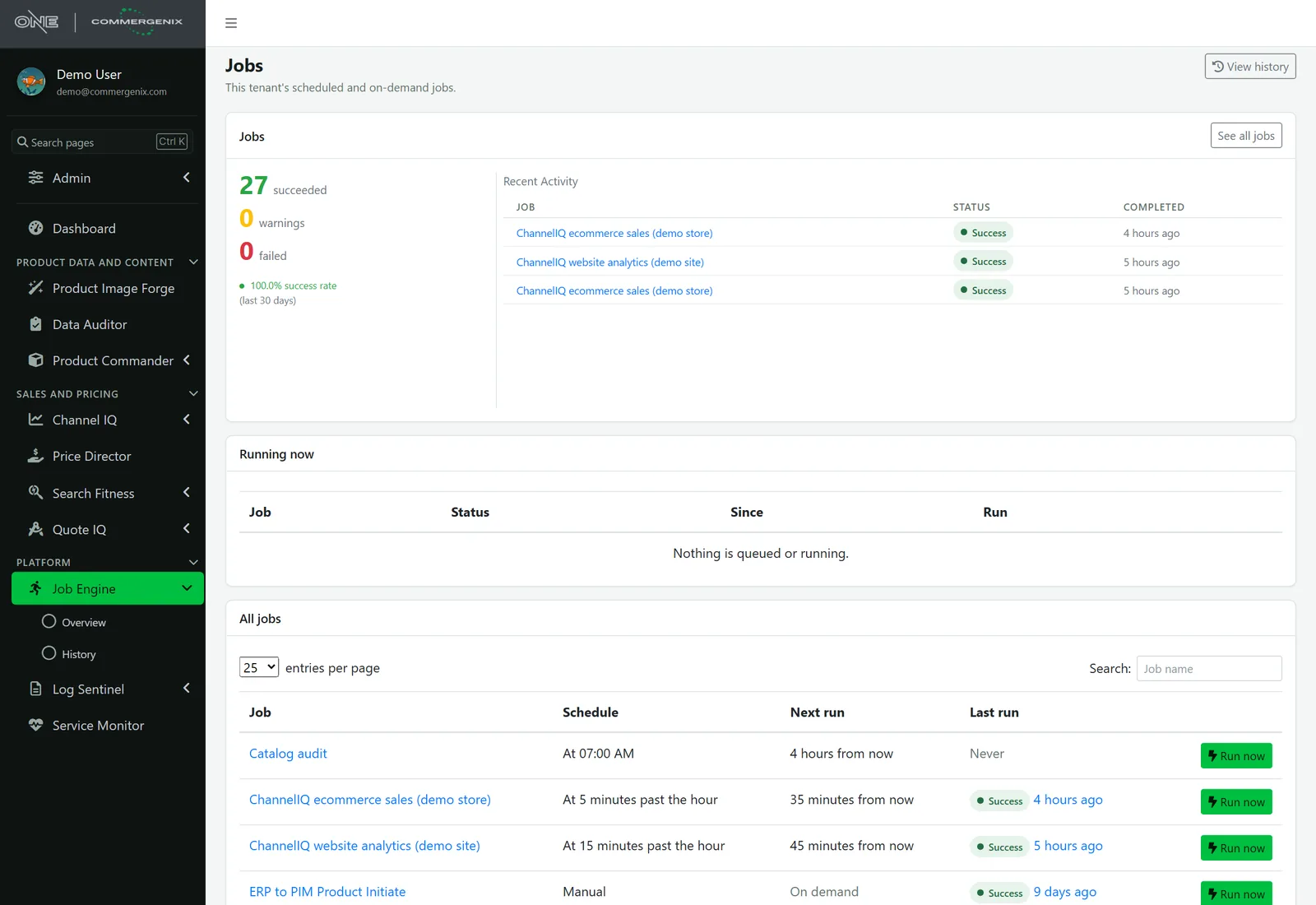
The overview counts the runs that succeeded, warned and failed, with the success rate for the last 30 days, then shows recent activity, anything queued or running now, and every job with its schedule, next run and last run.
- Warnings kept separate from failures, so a run that finished with problems doesn’t pass as a clean success.
- Run now starts any job on demand, outside its schedule.
Every run, and what it did.
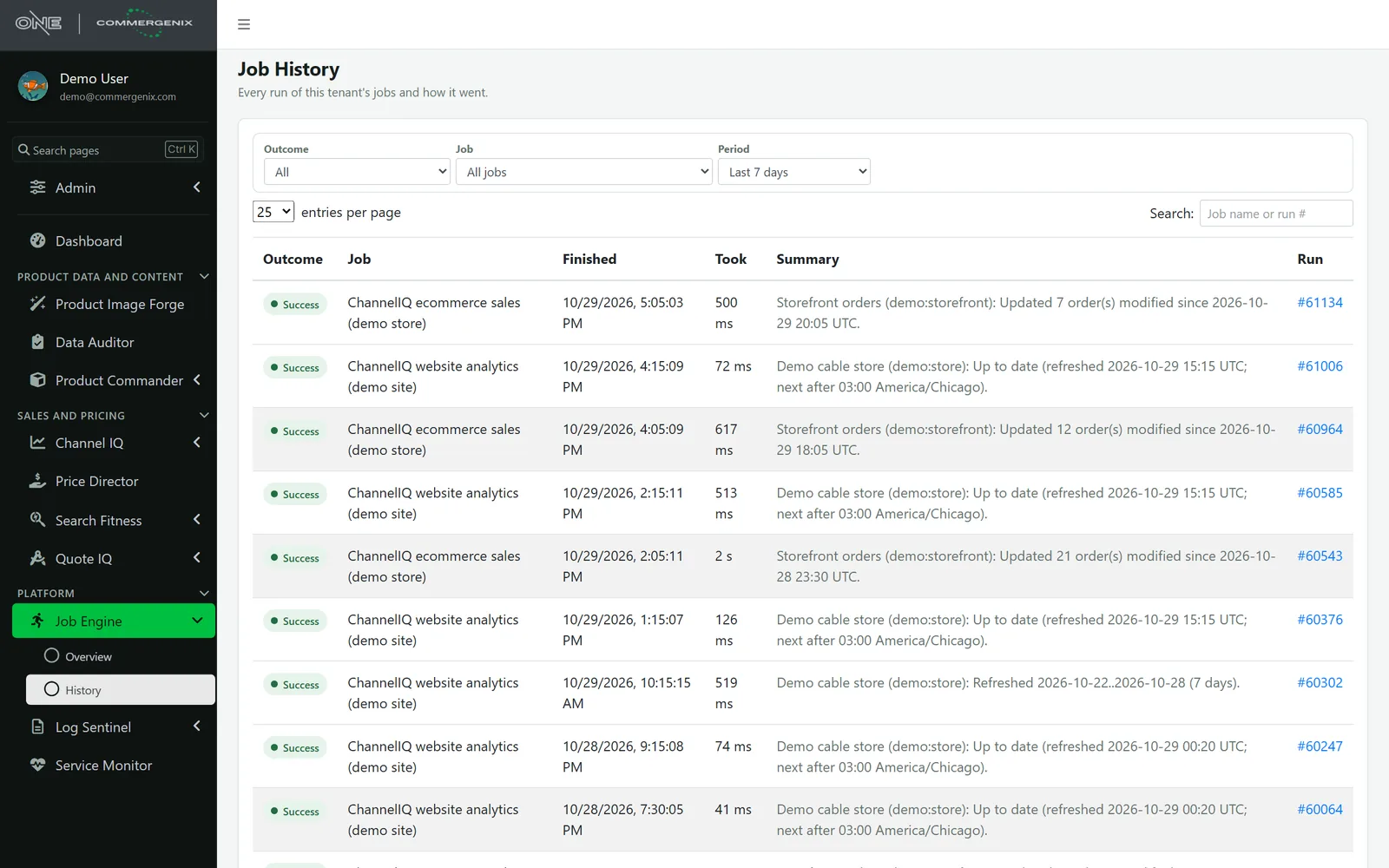
Job History lists every run with its outcome, when it finished, how long it took and a plain summary, such as “Updated 7 order(s) modified since 20:05 UTC”. Filter by outcome, job and period, or search by job name or run number.
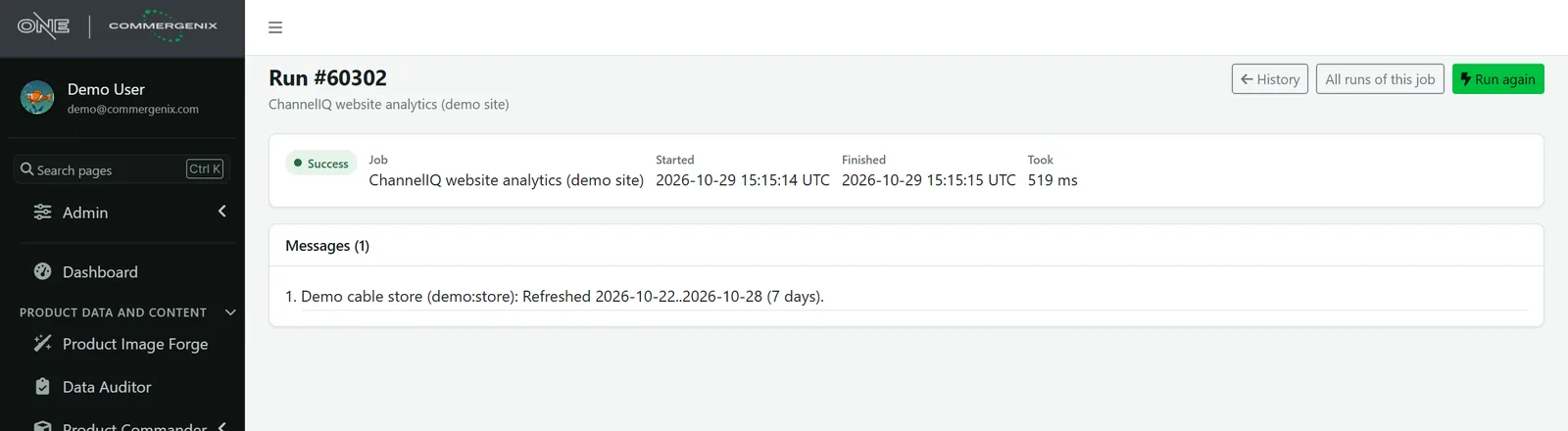
- A page for each run with its start, finish, duration and every message it logged.
- Run again from the run itself, or open all runs of that job.
Know when a job doesn’t run.
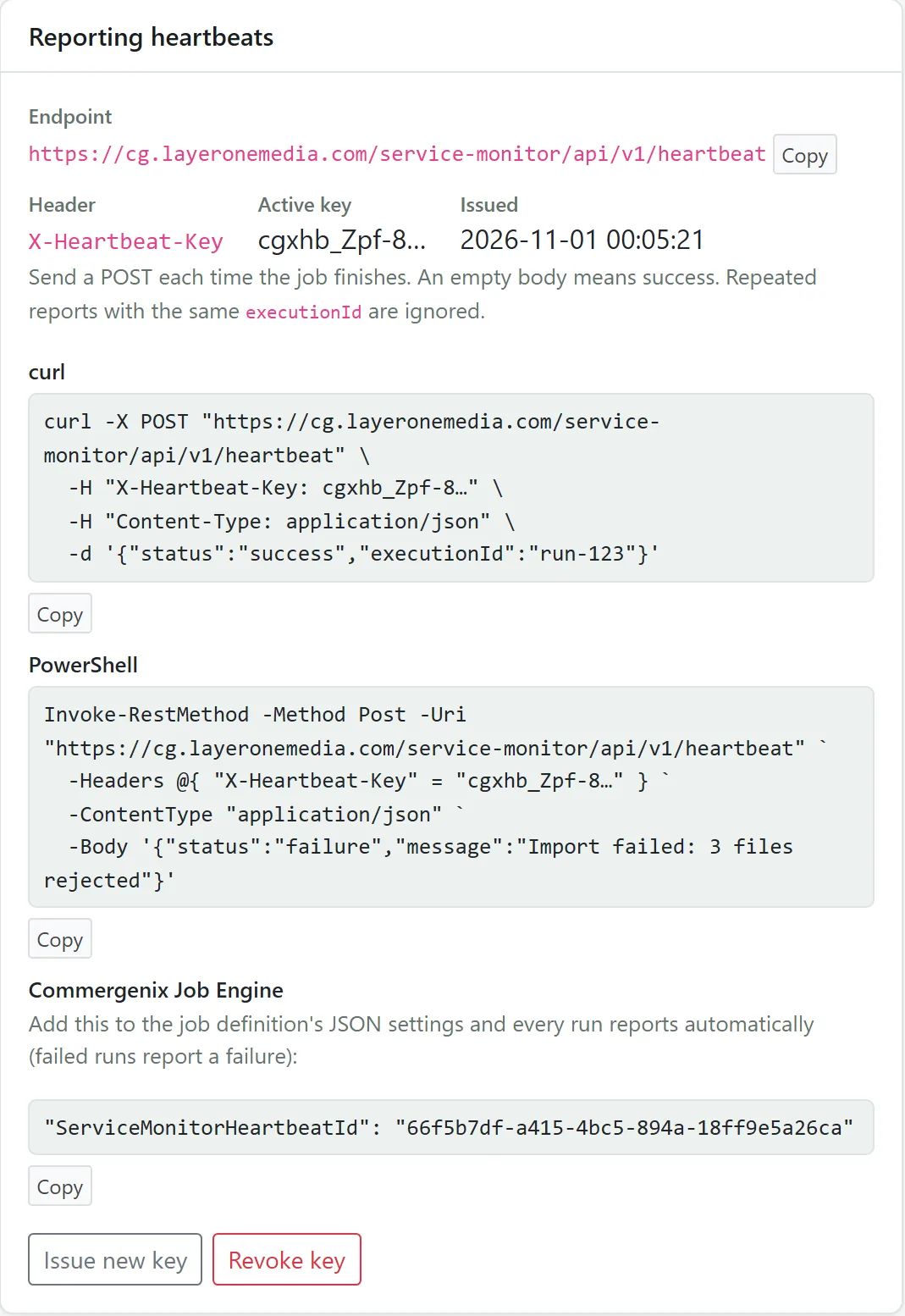
Add one line to a job’s settings and every run reports to Service Monitor; a failed run reports a failure. If a job stops reporting in on time, Service Monitor opens an incident and alerts you.
- Catches the silent failures: a job that never started is noticed, not just one that errored.
- One alert when the problem is confirmed, and one when it recovers.
The work behind every Commergenix module, and your own.
Every Commergenix module shares one job engine, so the work they do on a schedule shows up in the same place as the jobs you add.
Product data syncs
Move and convert data between ERP, PIM and ecommerce platforms, such as an ERP to PIM sync or a customer account sync.
Pricing updates
Such as Price Director’s daily job that reads metal prices and adds them to the price history.
Sales and analytics refreshes
Channel IQ’s hourly refreshes of storefront orders and website analytics.
Catalog audits
Data Auditor runs your catalog rules against every product in your PIM on a schedule.
Reports and cleanup
Recurring reporting and data cleanup that would otherwise be exported and fixed by hand.
Reusable mappings
Define a complex data mapping once and use it across jobs, instead of rebuilding it for each one.
Jobs for the platforms you already run.
Job Engine moves data between the ERPs, PIMs and ecommerce platforms Layer One works with every day. Running something not listed here? Tell us what you use.
 Optimizely
 Shopify
 nopCommerce
 Sitecore
 inriver
 Akeneo
 Epicor
 Infor
 Affiliated Distributors
Background work you can see.
A record of every run
Outcome, start, finish, duration and every message, kept for each run of each job.
Warnings aren’t hidden
Runs that finished with problems are counted as warnings, apart from successes and failures.
Failures reported out
Connect a job to Service Monitor and a failed or missing run becomes an incident and an alert.
Your jobs only
Each company sees its own scheduled and on-demand jobs and their history.
For teams whose systems need to stay in sync.
Integration owners
Every sync and import in one list, with a record of each run and a heartbeat on the ones that matter.
Developers
Write coded jobs once and let Job Engine handle the schedule, the run history and the reporting.
Ecommerce and operations teams
Create and run no/low-code workflows, and check that last night’s work finished without asking IT.
Common questions
What kinds of jobs does it run?
Data movement and transformation between ERPs, PIMs, ecommerce platforms and reporting tools, plus the scheduled work of the other Commergenix modules, such as Channel IQ refreshes, Data Auditor’s catalog rules and Price Director’s daily metal prices.
Do I need a developer to create a job?
No. Developers can write coded jobs, and non-technical users can create, manage and run no/low-code workflows.
How are jobs scheduled?
At a time of day, at a set number of minutes past every hour, or manually. Any job can also be started with Run now.
How do I find out a job failed?
The overview counts failures and warnings, and Job History shows each run’s outcome and messages. Connect the job to Service Monitor and a failed or missing run alerts you.
Do the other Commergenix modules use it?
Yes. Every Commergenix module shares one job engine, so their scheduled work appears alongside your own jobs.
Works alongside
Every Commergenix module shares one sign-in, one job engine, and one set of integrations, so each one you add makes the others more useful.
Service Monitor
Checks your websites and APIs on a schedule, and listens for heartbeats from the jobs and integrations that should run on time.
Learn more →Data Fabric
One shared set of business data for every Commergenix module.
Learn more →Log Sentinel
Collects and reviews application logs from connected systems such as your online store.
Learn more →Bring your syncs, imports and reports into one place.
Tell us which jobs your team runs today, where they run and which ones are still done by hand. We’ll show you how they’d look in Job Engine and tell you honestly where it doesn’t fit.